- /
- /
- /
External Sharing Report
Sharing documents with external users is a common feature in SharePoint Online, but it can also introduce security and compliance risks if not reviewed regularly.
The External Sharing Report provides a detailed, item-level overview of all external sharing configurations in SharePoint Online. It helps administrators and compliance teams understand where external access exists, how it is granted and who currently has access.
Target audience:
- SharePoint and Microsoft 365 administrators
- IT security and data protection roles
- Internal audit and risk management teams
Report Highlights:
- Exports external sharing links for Libraries, Site or the entire Tenant.
- Exports the report results in Excel format.
- Allows filtering options by active / expired, edit / show, everyone / specific people, site url or library url.
- Unlike PowerShell-based solutions, the report can be generated directly from the DMS-Shuttle user interface without writing scripts.
What does the External Sharing Links Report show?

The report analyzes documents and folders and presents the following Shareig Links information:
- Object Title
- Object Type (File or Folder )
- Link Type (anonymous vs. specific people)
- Access Type (View / Edit)
- URL of the shared Object
- Sharing Link URL
- Users (this field is only populated for “Specific People” links and if the user has accessed the link at least once)
- Expiration date (if configured)
- Site URL (server relative)
- Library URL (server relative)
Typical use cases
The External Sharing Links Report is especially useful for:
- Security reviews
- Compliance and audit preparations
- GDPR and data protection checks
- Regular external access reviews
- Identifying anonymous edit links
- Detecting external users with write permissions
How it works
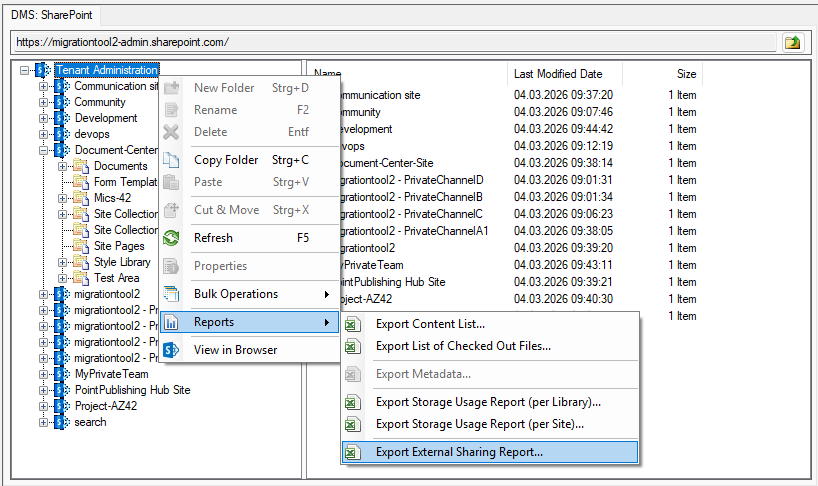
1. Select a Library, Site or the root of the Tenant (if you are a Global Admin) and perform the operation “Export External Sharing Links Report” (per right mouse click and selection in context menu).
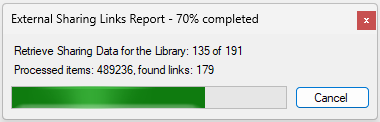
2. After that, the tool collects all libraries in the selected SharePoint structures and searches them for external sharing links. During the execution of the report the tool displays a Progress Dialog.
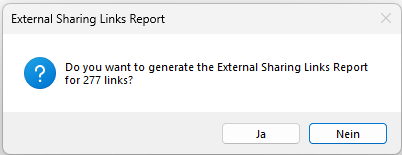
3. As soon as the search query is complete, the tool displays a confirmation dialog with the number of found Sharing Links. Hit the “Yes” button to complete or “Cancel” to abort the report.
4. A “Save as” dialog appears, where the user can select the target folder and the file name of the generated report.
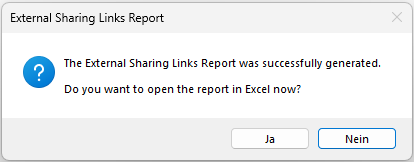
5. Once the generated report is saved in the specified location, the tool asks you if you want to open the report in Excel.
Get 15 days free Trial Version